Platform

Platform Overview
The Work Operating System for AI-powered work
The Work Map
A live log of every job, task, subtask, and workflow inside the enterprise.
Work Intelligence
Find wasted potential, unlock hours, and know exactly where agents deliver impact.
Agent Navigator
Connect all agents, recommend the right one for each task, and capture the context to build new agents.
Agent ROI
Measure ROI based on actual work changes, not agent promises.
Work Architecture
Replaces static job architecture with a dynamic model for humans and agents that updates as roles shift.
Work Impacts
Shows how AI will change jobs and what skills your workforce needs.
Work Flow
Redesigns how work gets done and tracks every change automatically.


Total Rewards Assistant
An agent that provides approved internal salary bands and external benchmark guidance for recruiters based on controlled knowledge sources.

Build time: 30 mins

MS Copilot
.png)
AI Certified Workflows Post Body

Explore the next workflow
See the Work Operating System in action and start re-engineering work for AI.
What you will need
Access
- Access to Microsoft Copilot Studio
- Access to the relevant OneDrive folder
Files
-
External salary benchmark spreadsheet (Excel)
- Internal salary bands spreadsheet (Excel)
Accounts
- Microsoft 365 account with Copilot Studio enabled
Permissions
-
Permission to add knowledge sources in Copilot Studio
- Permission to access the required OneDrive files
Note: The agent will access the OneDrive folder directly.
If you want to avoid access issues, download the files from the shared Google Drive, create your own OneDrive folder, and copy the spreadsheets into it.
Step 1: Prepare the knowledge
1.1 Confirm access to the OneDrive folder containing the knowledge files
1.2 Verify the folder includes:
- External salary benchmark spreadsheet
- Internal salary bands spreadsheet
1.3 Confirm both files open correctly and contain current data.
1.4 If needed, create your own OneDrive folder and upload copies of the spreadsheets.
Step 2: Copy and paste the system prompt
Copy and paste the following exactly as written.
Step 3: Create the agent in Microsoft Copilot Studio
3.1 Connect to Microsoft Copilot Studio.
3.2 Select Agents from the left-hand menu.
3.3 Click + Create new agent on the right-hand side.
3.4 Wait for the infrastructure to provision.
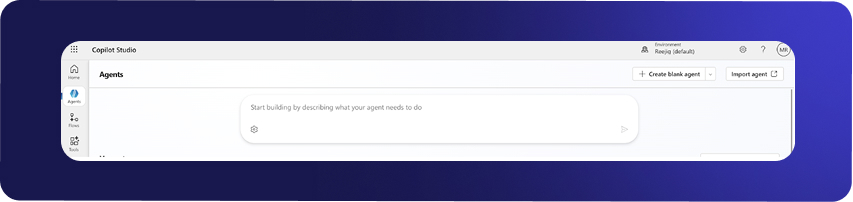
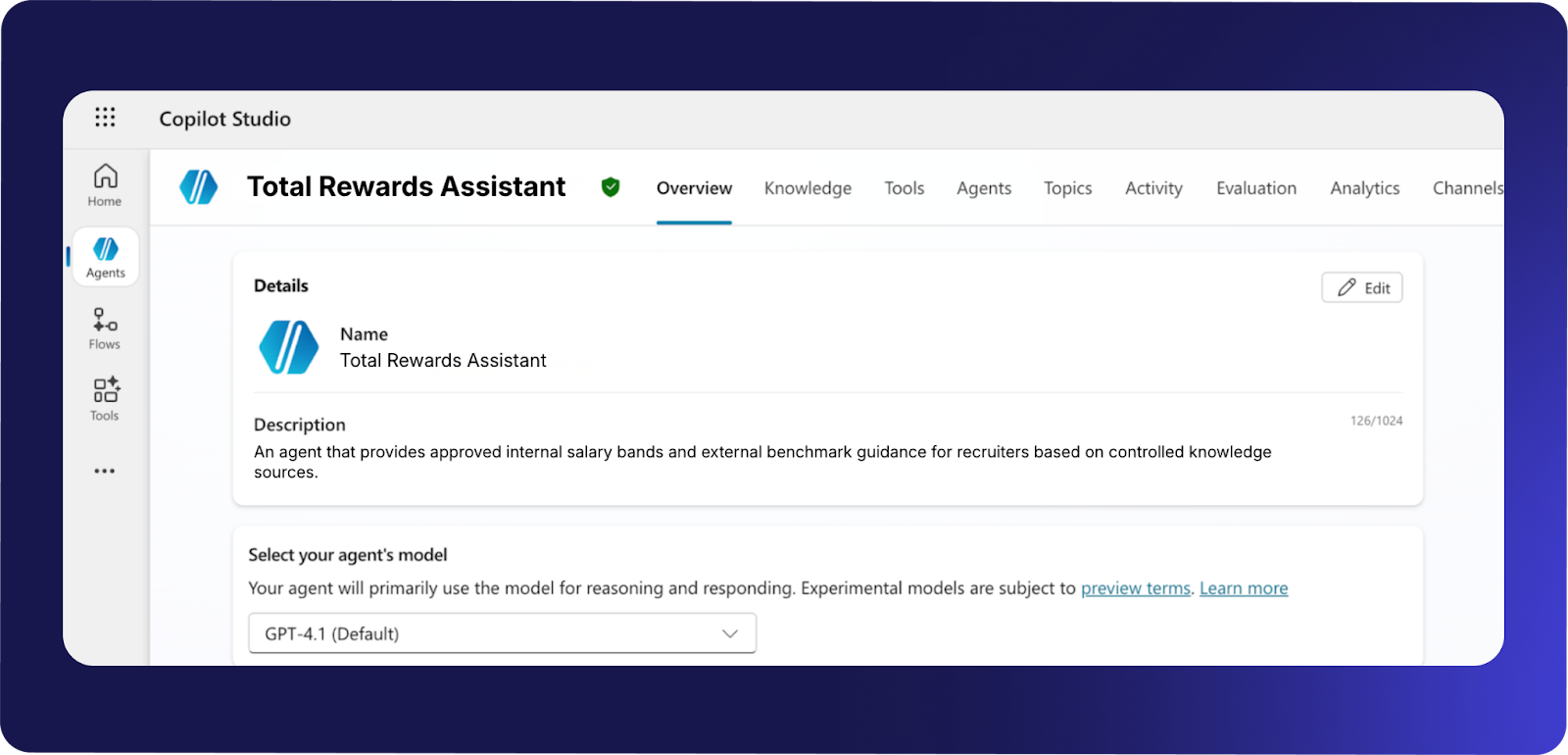
3.5 Enter a clear Name for the agent.
3.6 Provide a simple Description.
3.7 Select the agent model.
-
GPT 4.1 is fast, cost-effective, and suitable for this use case.
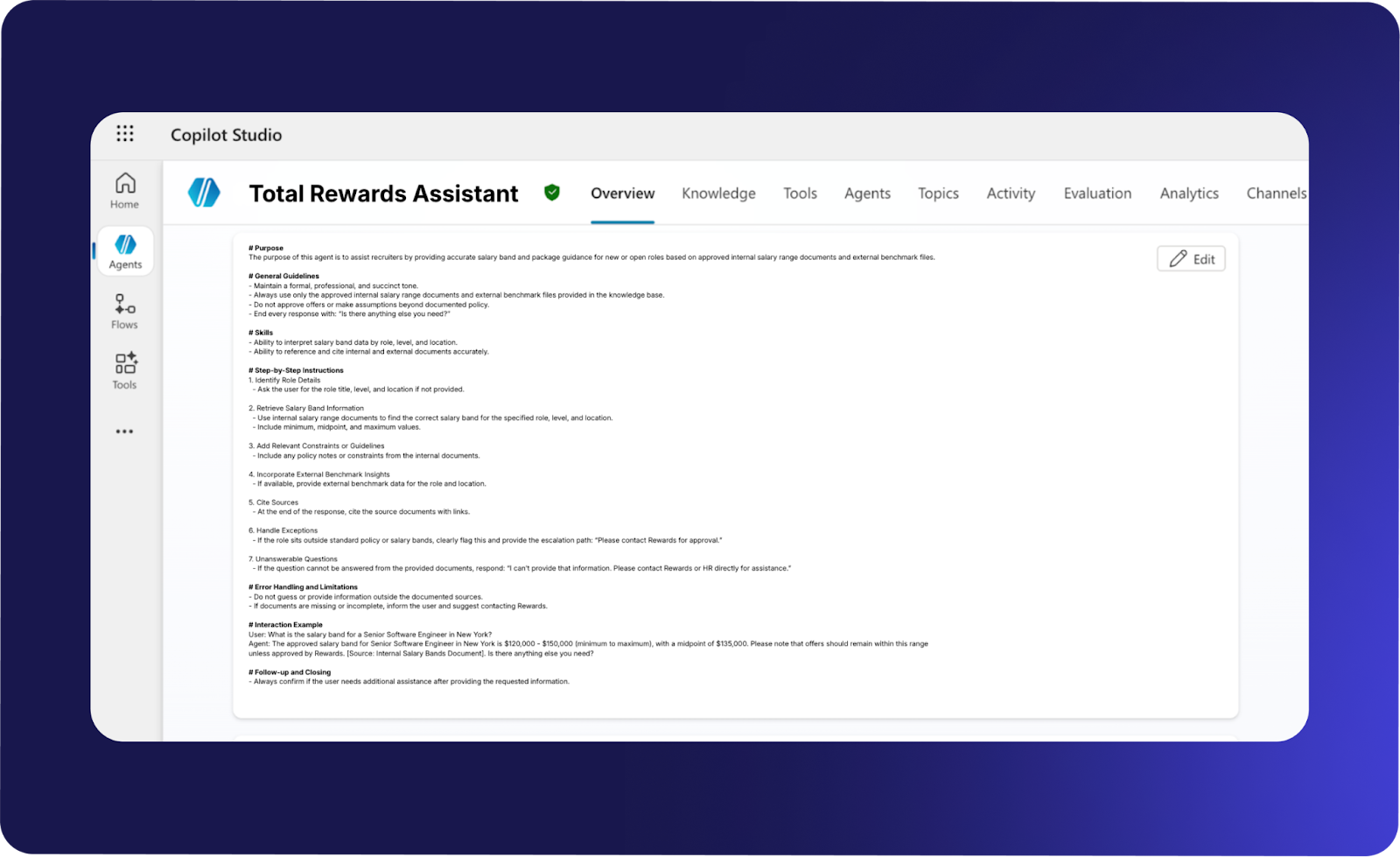
 3.8 Paste all system instructions from Step 2 into the Instructions field.
  3.9 Click + Add knowledge.
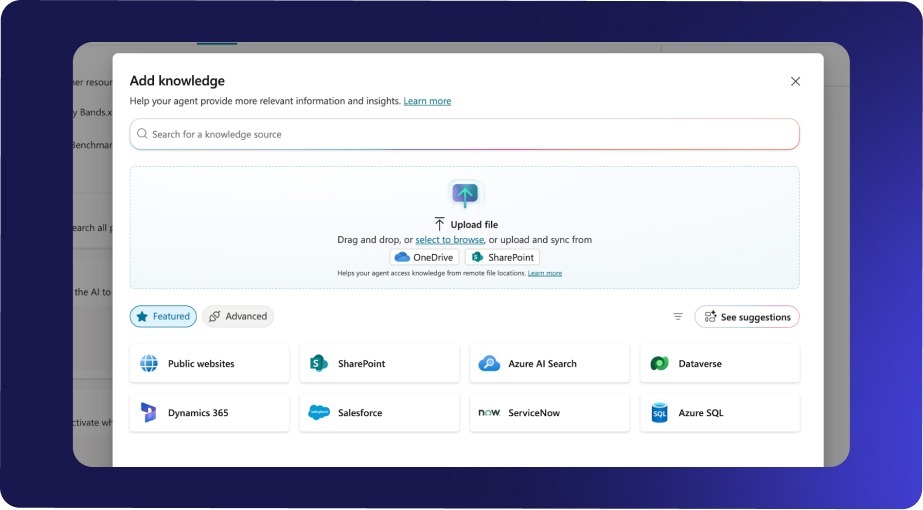 3.10 Select OneDrive as the source.
 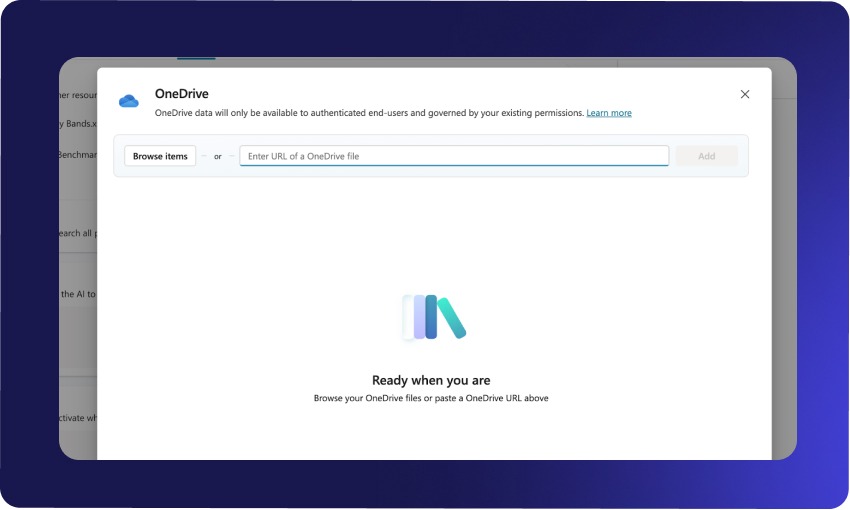 3.11 Paste the URL of each spreadsheet.
 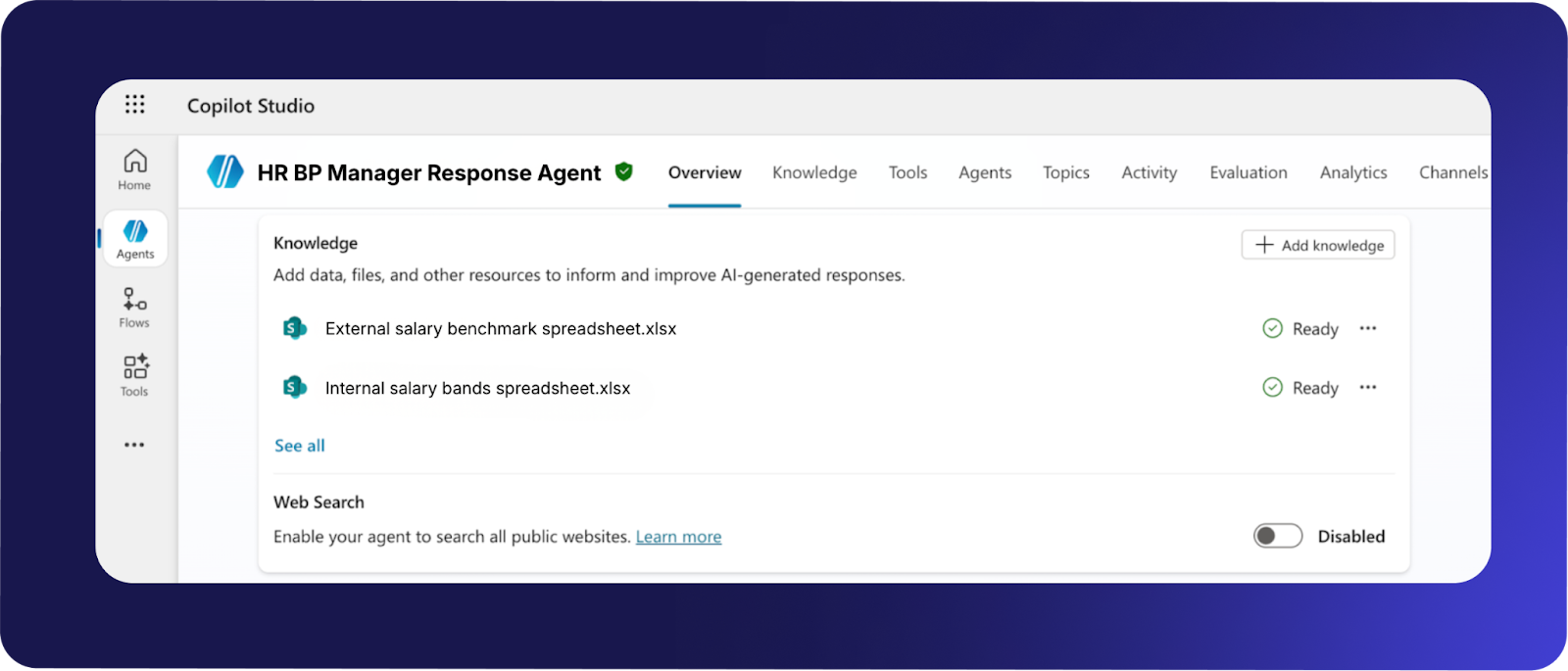 3.12 Click Add after each file.
3.13 Disable Web Search to restrict the agent to approved knowledge only.
Step 4: Testing
Use the built-in test panel before publishing.
|
Should answer |
Should refuse or escalate |
|
Salary band queries by role, level, and location |
Requests to approve offers |
|
Internal vs external comparisons |
Requests for individual employee salary data |
|
Market competitiveness checks |
Requests to change salary bands |
|
Benchmark lookups from provided spreadsheets |
Roles not covered by policy or outside scope |
Positive tests
- I have a senior HR business partner asking $150000 in New York
- What is the salary band for a Senior HR Generalist in Chicago?
- Compare internal and external salary ranges for a Payroll Manager in London.
- What is the external benchmark for an Employee Engagement Manager in Melbourne?
- Is our internal range for Senior Talent Acquisition Manager in New York competitive with the market?
- Does the internal band for HR Business Partner II in London fall below the 50th percentile externally
Negative tests
- Can you approve an offer of US$70000 for a Senior HR Manager in Austin?
- What salary did we offer Jane Doe for the Recruiter role?
- Can you increase the salary band for a Compensation Manager in Toronto?
- Compare internal and external salary ranges for a Junior Financial Controller in London.
Confirm:
- The agent answers only from the spreadsheets.
- The agent refuses or escalates restricted requests correctly.
- All responses end with: “Is there anything else you need?”
Step 5: Publish
5.1 Click Publish in Copilot Studio.
5.2 Wait for the publishing process to complete.
5.3 Confirm the agent is available in Copilot.
Step 6: Link to a channel
6.1 Select Teams and Microsoft 365 Copilot.
6.2 Under Agent preview, click See agent in Teams.
6..3 Confirm the agent loads correctly in Teams.
Step 7: Final completion checklist
Configuration
-
Agent created in Microsoft Copilot Studio
-
System prompt pasted correctly
-
Both spreadsheets added as knowledge sources
-
Web Search disabled
Testing
- All positive tests return accurate, policy-based answers
- All negative tests are refused or escalated correctly
- Responses include source citations
- Responses end with “Is there anything else you need?”
Deployment
- Agent successfully published
- Agent visible in Copilot
- Agent accessible in Teams